Sign up & sign in
Create your Zedule workspace with Google OAuth in under a minute. We'll cover what to expect on first sign-in and how the per-business switcher works.
Zedule uses Google as the only sign-in method. There are no passwords to manage, no email-and-password flows, no SAML for the V1 plan. If you have a Google account — Workspace or personal — you have a Zedule account.

Before you start
You need:
- A Google account (Workspace or personal — both work)
- A modern browser. We test against the latest Chrome, Safari, Firefox, and Edge
That’s it. No phone number, no credit card on file for the trial.
Sign up
- Go to app.zedule.app.
- Click Continue with Google.
- Pick the Google account you want to use as your owner identity.
- You’ll land on the business switcher. If this is your first time, the switcher is empty — tap Create your first business and you’re in.
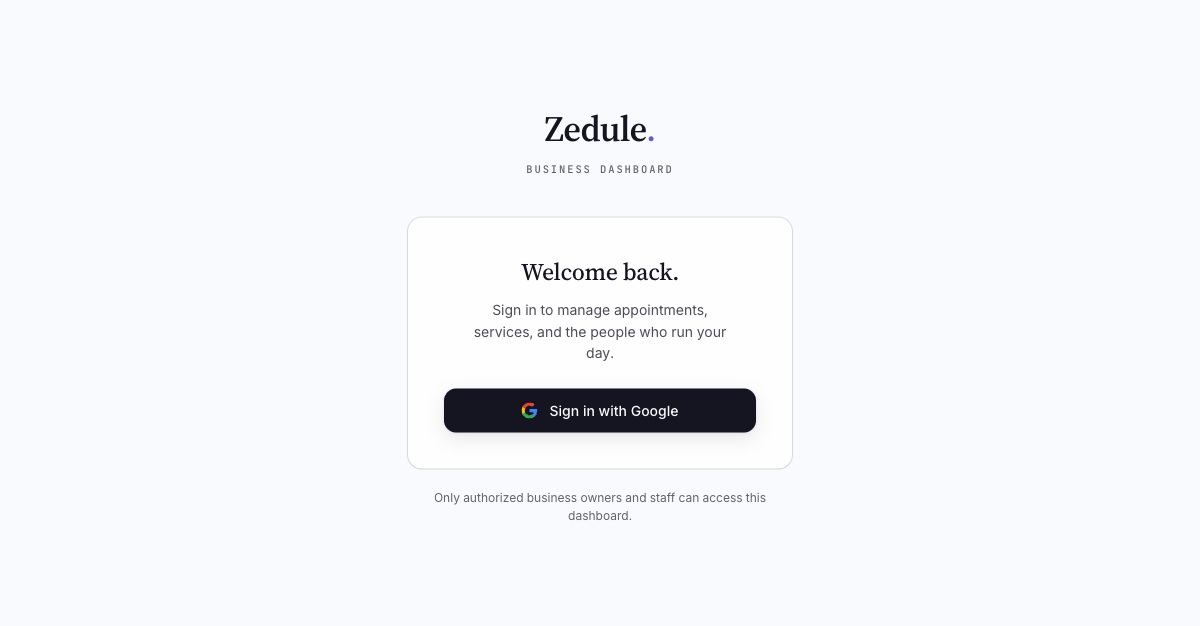
The Google account you pick on first sign-in becomes the owner of your workspace. You can add staff later (each with their own Google sign-in) but the owner can’t be transferred without a support ticket.
What “owner” means
The owner has every permission Zedule grants — managing staff, billing, deleting the business. We recommend the owner account is one you’ll keep long-term — your founder’s email, not a personal address that might churn.
If you’re an agency setting up a workspace for a client, don’t sign in with your own Google. Have the client sign in for the first time on a screen-share, then add yourself as a staff member with admin permissions. That way the workspace ownership matches the entity that pays for it.
The business switcher
If you run multiple businesses (e.g., two clinic locations, or a salon and a spa under the same owner), Zedule supports switching between them inside one Google account. The switcher lives in the top bar, next to the Zedule wordmark, and shows your current business with a small switch link.

Each business is fully isolated — separate calendar, staff, customers, billing, and booking page URL. Switching is just a route change; nothing about one business leaks into another.
Signing back in
Subsequent sign-ins use the same Google account. If you’re already signed into Google in the browser, the OAuth handshake is invisible — you’ll bounce to the dashboard in under a second. If you’re signed into multiple Google accounts in the same browser, Google will ask you which one to use.
Trouble signing in?
The most common issue: the Google account you’re trying to use is restricted by your Workspace admin’s third-party app policy. If Google shows you a “this app is blocked” screen, ask your Workspace admin to whitelist app.zedule.app in the Apps → Web and mobile apps settings.
Next
→ Set up your business profile — the address, hours, and brand color your customers will see.