Add your first service
Services are what customers book. Each service has a name, a duration, a price, and (optionally) the staff who can perform it.
In Zedule, a service is a single bookable thing — a haircut, a 60-minute massage, a chiropractic adjustment, a piano lesson. Customers pick from your service list on the booking page and that pick determines how long the appointment is, what it costs, and which staff are available for it.

Open the Services page
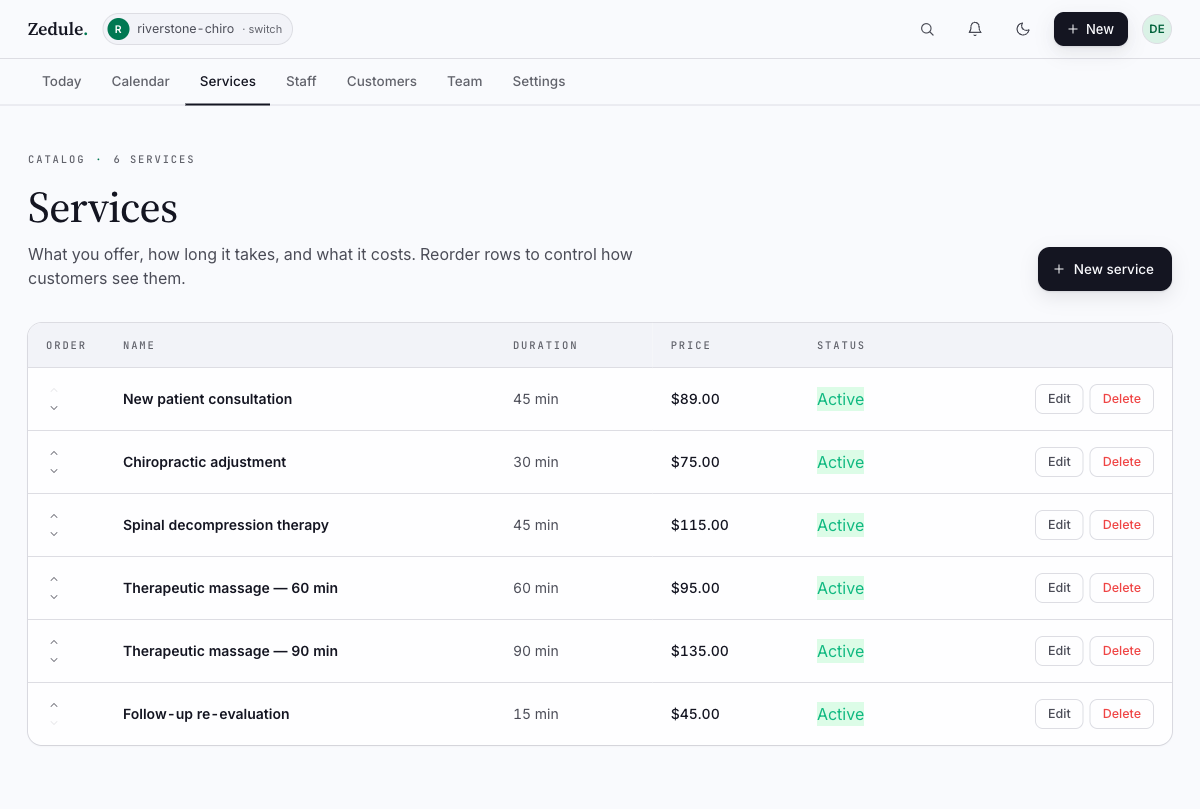
From the top nav, click Services. New accounts start with zero services. Click + New service in the top-right of the table. Once you’ve added a few, the page reads like this:
Fill in the four required fields
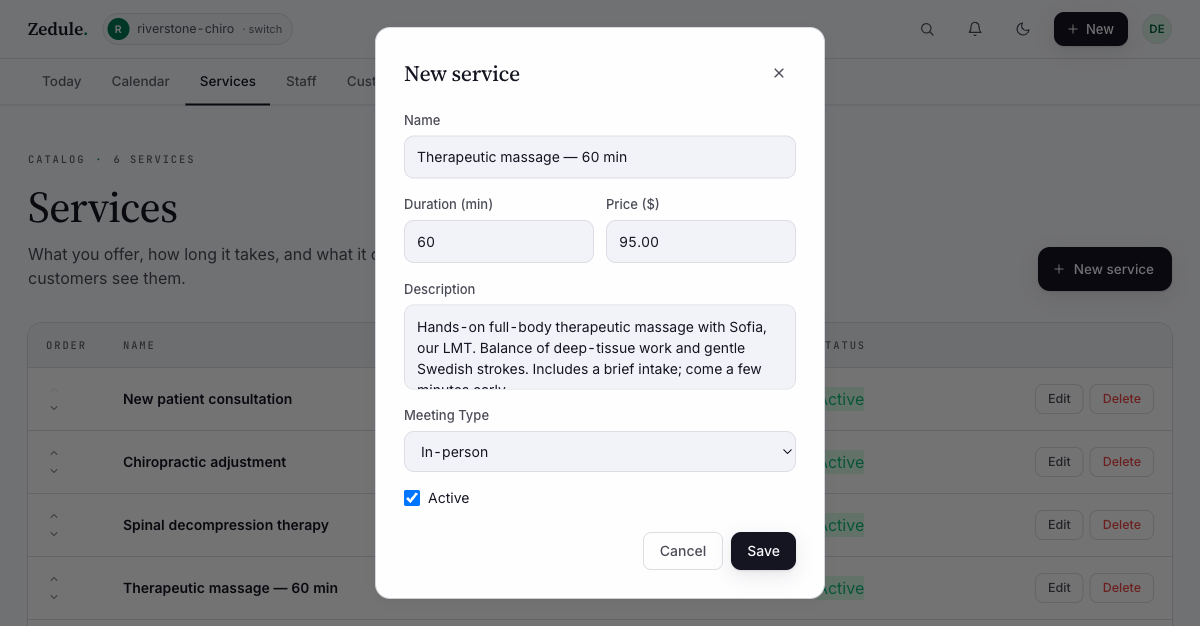
Name. What customers see on the booking page. Be specific — “Therapeutic Massage 60 min” reads better than “Massage”. If you have variants (30/60/90 minutes), make each variant its own service rather than asking the customer to pick a duration.
Duration. In minutes. This is the appointment block on the calendar — including any prep or cleanup time you want padded. If a 60-minute massage actually needs 75 minutes (15 minutes between clients to flip the room), set duration to 75 and explain in the description.
Price. In your business currency (set on the Profile tab). Whole numbers or two decimals. Set to 0 for free consultations — the booking page will say “Free” instead of “$0”.
Description. Optional but worth writing. One short paragraph the customer reads before they pick a slot. Mention what’s included, what to expect, what to bring. The customer is on a booking page comparing services — give them enough to decide.
Optional: staff assignment
By default, every service is bookable with every staff member. If you have a service only one person can do — a specialty technique, a senior provider’s premium offering — open the service after saving and check only the staff who can perform it. Customers picking that service will only see those staff in the booking flow.
Optional: category
If you have more than ~6 services, group them into categories. The booking page renders each category as a section heading. Common groupings: by type (“Adjustments”, “Bodywork”, “Therapy”), by length, or by who it’s for (“Adults”, “Kids”).
Save and verify
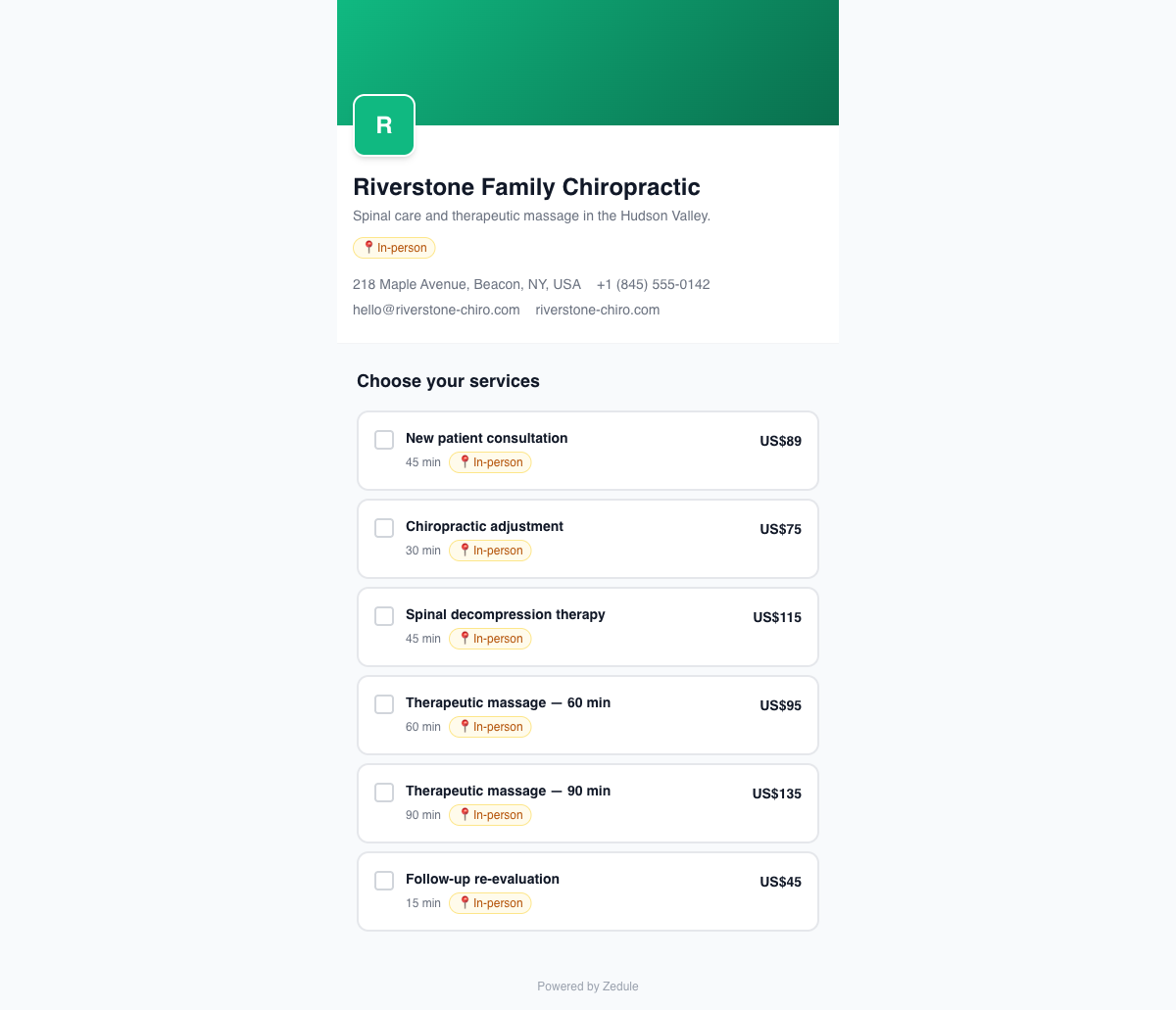
Click Save. Your new service should appear in the table with its name, duration, and price. Open book.zedule.app/<your-slug> in a private window — the service should show up under the service picker.
Add the rest
Repeat for every service you offer. Most owners spend 5-10 minutes here when they first set up. You can edit service names, durations, and prices later — past appointments keep the price they were booked at, future appointments use the current price.
Next
→ Add your first staff member — Zedule isn’t useful with just an owner; add the people who actually take appointments.