Add your first staff member
Staff are the people who actually take appointments — providers, stylists, therapists, instructors. Each gets their own working hours and shows up as a column on the calendar.
A Zedule staff member is anyone the customer can book with. They don’t need a Zedule login of their own to be on the calendar — you can add a staff member as a calendar resource, then later invite them to log in if they want to manage their own hours and see their own day.

Open the Staff page
From the top nav, click Staff. Each staff member is a card with their name, role, schedule, and edit buttons.
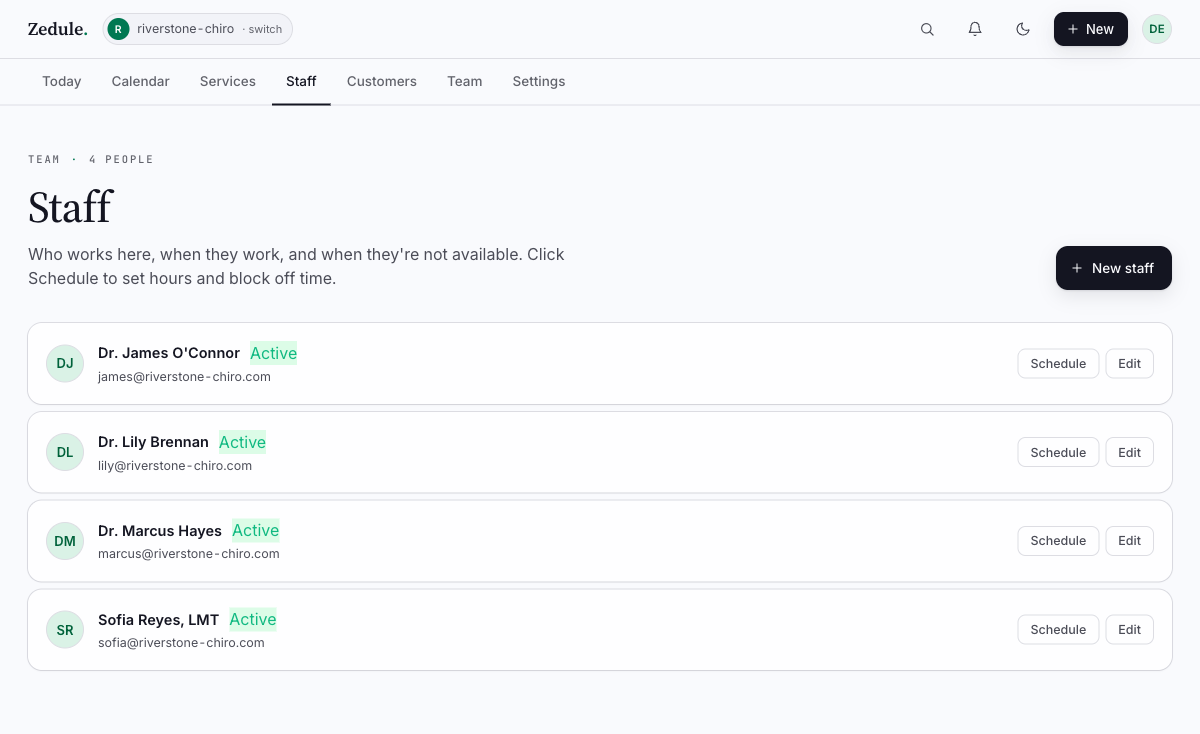
Click + New staff member
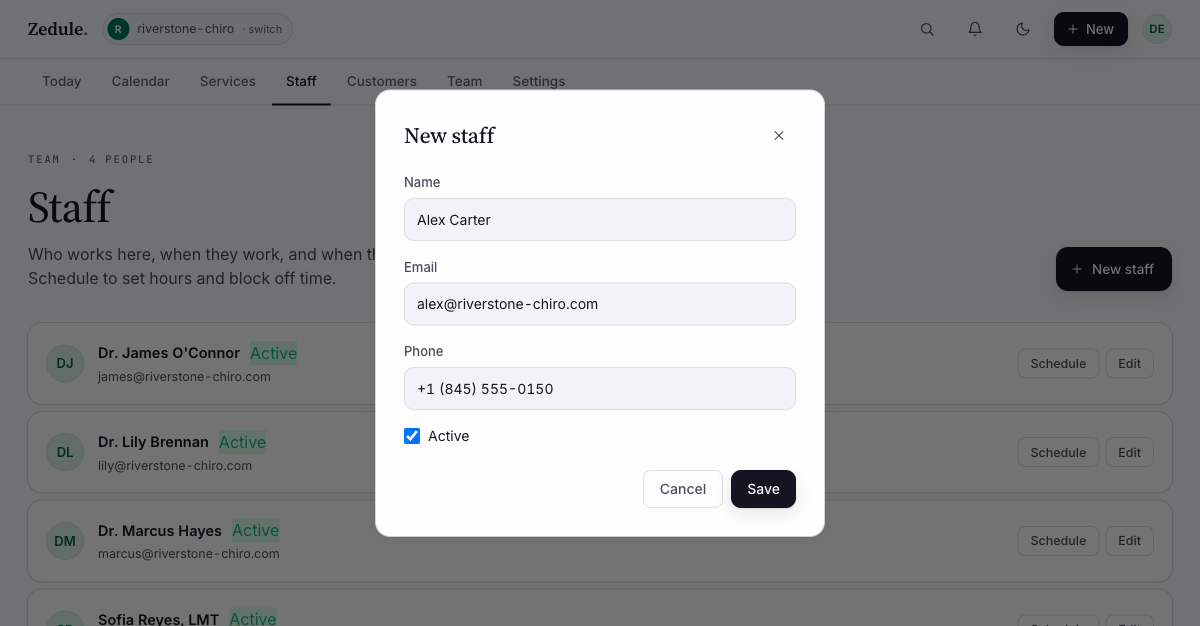
A modal opens with the basic fields:
- Name — first + last; this is what customers see on the booking page. If they have a credential you want shown (DC, LMT, RMT), include it: “Sofia Reyes, LMT”
- Email — used if you later invite them to log in; can be left blank for now
- Phone — optional; if set, customers can call this provider directly from the customer profile inside Zedule
- Active — leave checked. Unchecking is the soft-delete: appointments stay, but no new bookings can be made
Set working hours
Right after creating a staff member, click Schedule on their card. The hours editor opens — one row per day of the week with a checkbox and a time range.
Most providers have the same shape every week: Mon–Fri 9-5, off Saturday and Sunday. Toggle the days they work, set the start and end times, click Save Hours.
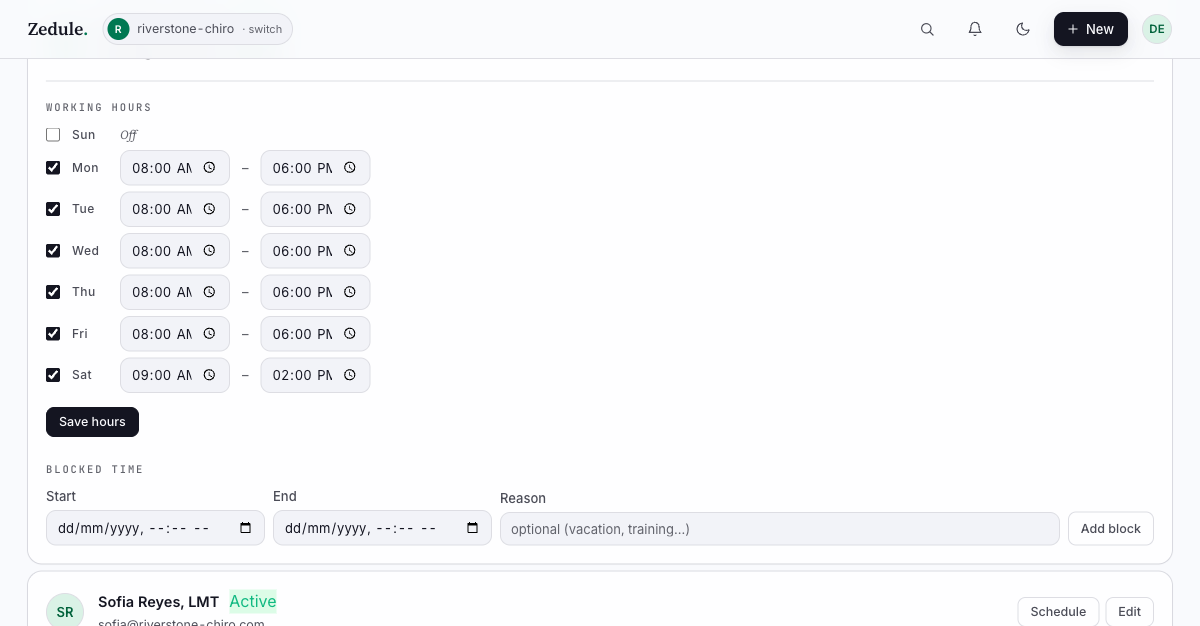
If a provider has different hours on different days — Tuesdays they work 12-8, Saturdays they’re 10-2 — set each day independently. The booking page only offers slots inside the staff member’s working hours intersected with your business hours.
Time off and blocked time
Working hours are the recurring schedule. For one-off blocks — vacation, lunch every day, a half-day for a workshop — use blocked time on the calendar (right-click → Block, or open Today / Calendar → New → Block time). Blocked time is treated as unavailable on the booking page even if it’s inside working hours.
Permissions (optional, can wait)
Each staff member has a permissions level: Owner, Admin, Provider, or Front Desk. The default for someone you just added is Provider — they show on the calendar but can’t see other staff members’ appointments or settings. If you want them to be able to take payments or edit other staff’s calendars, bump them to Admin in their settings.
You don’t have to figure permissions out on day one — start with everyone as a Provider and adjust later if you find someone needs more.
Repeat for the rest of your team
Most setups have 2-6 staff. Spend a few minutes adding them all with their working hours; then your calendar will show every column and the booking page will offer the right people for the right services.
Next
→ Brand your booking page & share it — pick a custom hex color, copy the link, and drop the iframe snippet on your existing site.